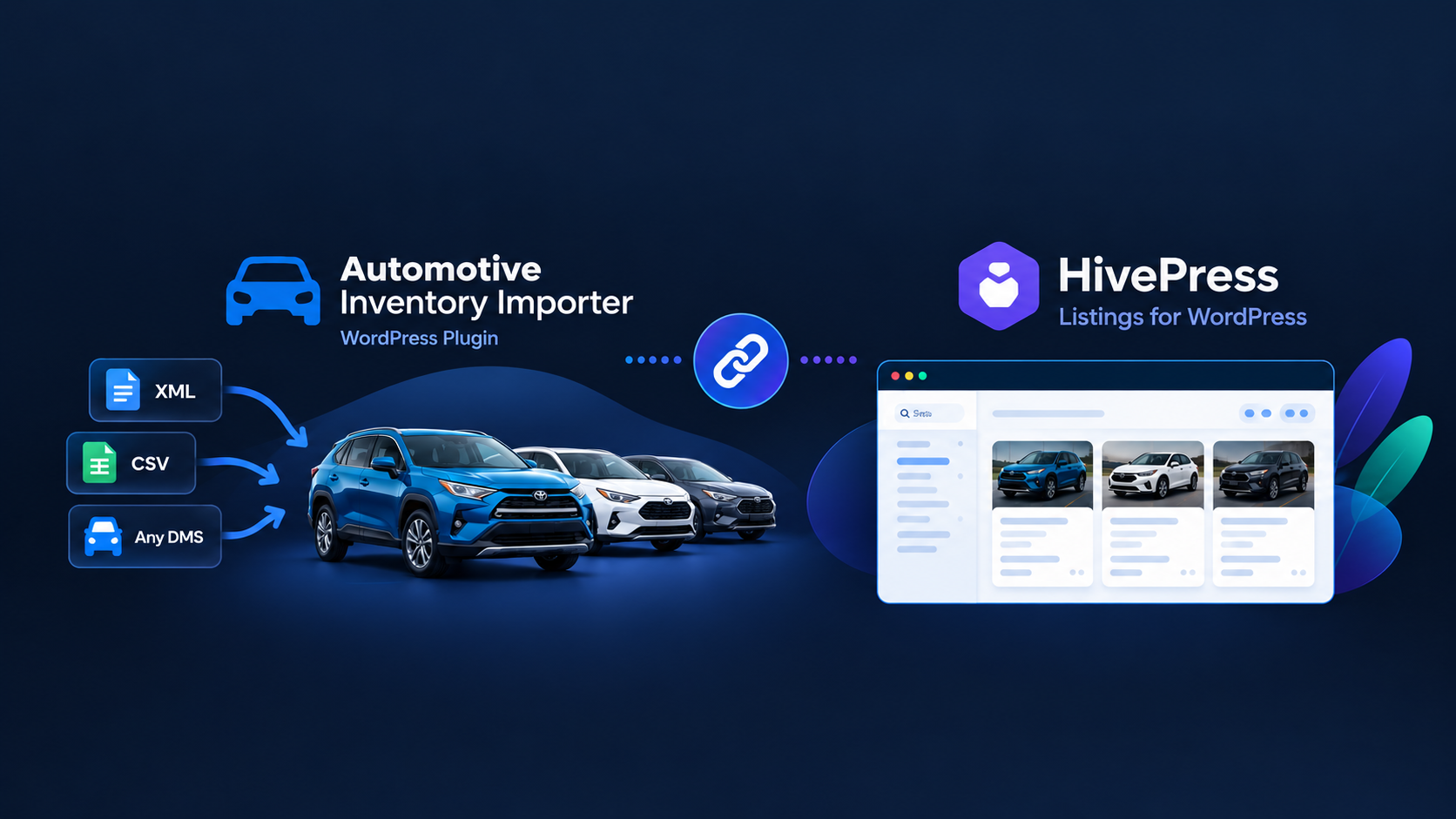

The new HivePress integration in Automotive Inventory Importer means dealers no longer need to enter vehicles by hand or maintain a separate import script for their HivePress-powered website. Automotive Inventory Importer now writes feed data directly into the HivePress Listings post type, and keeps it in sync automatically as your inventory changes.
Why the HivePress Integration Matters
Before this release, dealers on HivePress had two options: enter every vehicle by hand, or build a custom script to push feed data into HivePress Listings. Both cost time that could go toward selling cars. The HivePress integration removes that step. Point the plugin at your feed once, and new vehicles appear as HivePress listings automatically, with photos in the gallery and pricing, mileage, and specs filled in from your DMS. Sold vehicles are handled the same way your sync settings define, so the listings on your site always match what is actually on the lot.
What Changed in This HivePress Integration
- Free version: you can now choose HivePress Listings as the import target and map your feed fields to your HivePress attributes by hand.
- Pro version: adds a one-click preset that reads the listing attributes already configured on your site (make, model, mileage, fuel type, body type, and others) and matches your feed to them automatically, so setup takes minutes instead of an afternoon of manual mapping.
In both versions, imported photos are added to each listing’s gallery, and every vehicle is published under your dealer profile.
How the HivePress Integration Works
- Install and activate HivePress and Automotive Inventory Importer (free or Pro) on your WordPress site.
- In HivePress, make sure the listing attributes you need are already set up (Make, Model, Year, Mileage, Fuel Type, Body Type, and so on). For selection-type attributes, make sure the attribute options match the values used in your feed.
- In the plugin’s Feed & Sync tab, paste your XML or CSV feed URL and set Import Vehicles Into to the HivePress Listings post type. Save your changes.
- On the Field Mapping tab, match your feed fields to the right HivePress attributes. Free users do this by hand; Pro users click once and the preset applies the mapping automatically.
- Choose a sync schedule and click Sync Inventory Now to run your first import.
- Review your imported vehicles under HivePress Listings on your site.
From that point on, the feed syncs automatically on the schedule you set. New vehicles appear as listings, sold vehicles are handled the way you configured (draft, trash, or marked sold), and re-syncing updates existing listings instead of duplicating them.
Watch the walkthrough:
HivePress Integration: Free vs. Pro
| Capability | Free | Pro |
|---|---|---|
| Import into HivePress Listings | Yes | Yes |
| Field mapping | Manual | One-click automatic preset |
| Photos imported into listing gallery | Yes | Yes |
| Sync frequency | Daily or twice daily | As often as every few minutes |
| Vehicle volume | Suited to smaller lots | Unlimited |
Works with any DMS feed
Automotive Inventory Importer reads any flat XML or CSV feed, so it fits whatever system your dealership already exports from, including vAuto, HomeNet, Dealer.com, VinSolutions, Dealertrack, CDK Global, Reynolds & Reynolds, DealerSocket, DealerCenter, AutoManager, Frazer, Tekion, PBS Systems, Dominion DMS, and others. There is no DMS lock-in and no theme lock-in.
HivePress Integration FAQ
Does Automotive Inventory Importer work with HivePress for free?
Yes. The free version imports feed data directly into HivePress Listings, with manual field mapping.
What does the Pro version add for HivePress users?
A one-click preset that automatically maps your feed to the HivePress attributes already configured on your site.
Which dealer management systems are supported?
Any DMS that exports a flat XML or CSV feed, including vAuto, HomeNet, Dealer.com, CDK Global, Reynolds & Reynolds, Tekion, PBS Systems, Frazer, and DealerCenter.
Is HivePress required?
Yes. HivePress must be installed and your listing attributes configured before importing.
Where can I read HivePress’s own documentation for this integration?
HivePress has published an official help article covering the setup: https://help.hivepress.io/article/213-how-to-import-car-listings
Get Started With the HivePress Integration
Install the latest version of Automotive Inventory Importer from the WordPress.org plugin directory to try the HivePress integration for free. For one-click automatic field mapping, upgrade to Pro at https://ibexoft.com/products/automotive-inventory-import-sync-car-dealer-feeds/